Log In/Out
BatChat supports login platforms: mobile, PC, and web.
Mobile Login Methods
- Mobile Number Login: BatChat accounts are bound to the mobile number used during registration by default. You can log in directly using this mobile number to receive SMS verification codes;
- Email Login: In "My" - Settings" - "Account", bind an email address. After successful binding, you can use this email to log in to your account;
- Account Password Login: In "My" - "Settings" - "Account", set a login password. After successful setting, you can use your BatChat ID + login password to log in.
Login Process
- Open the BatChat APP and click "Login";
- Select login method: Default is account password login. Click the bottom left corner to select mobile number login or email login;
- Account password login: Enter your BatChat ID and set login password, agree to relevant terms and click "Login Now";
- Mobile/Email login: Enter the mobile number/email address bound to your account, agree to relevant terms and click "Continue", enter the verification code to complete login;
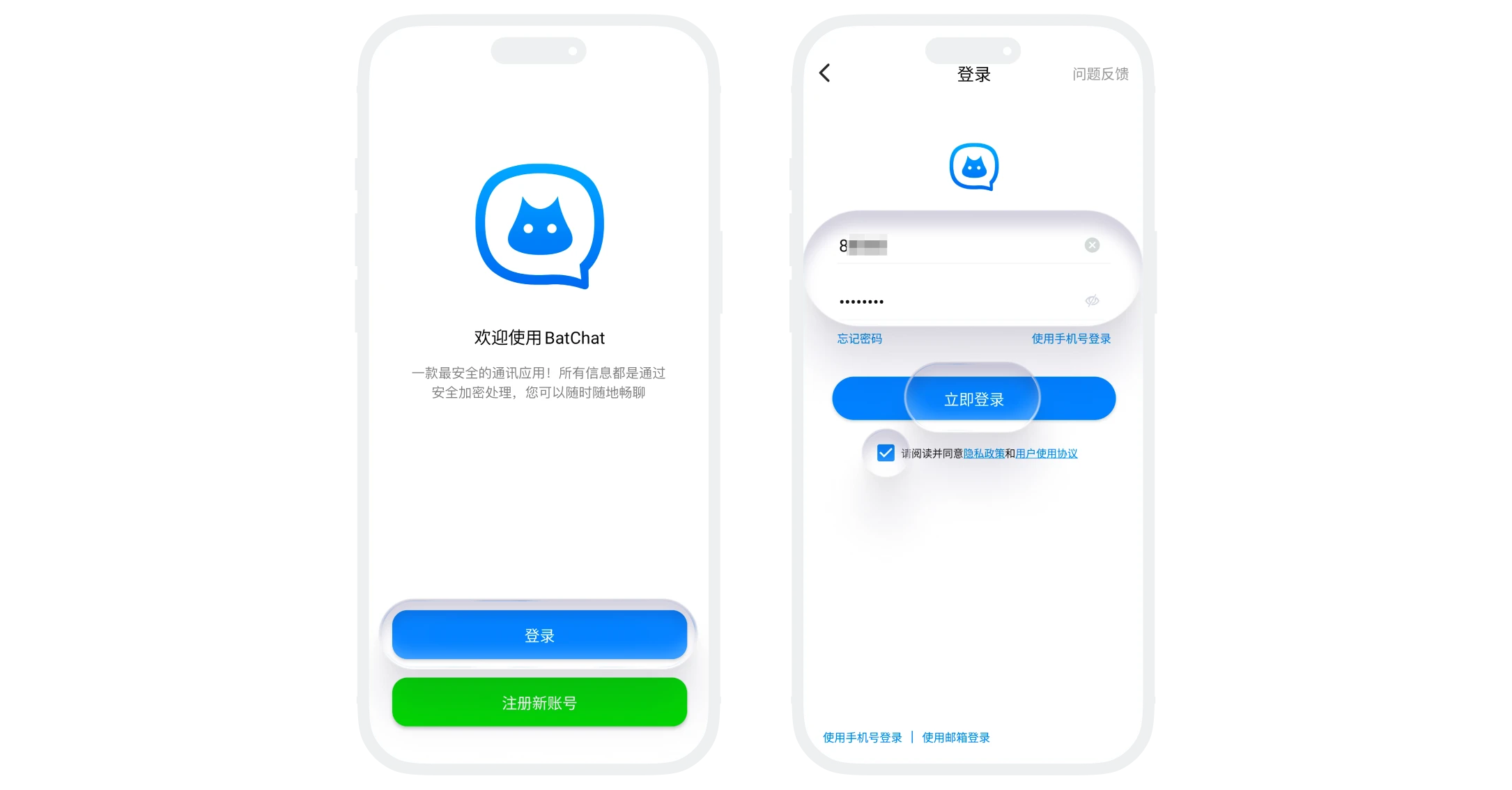
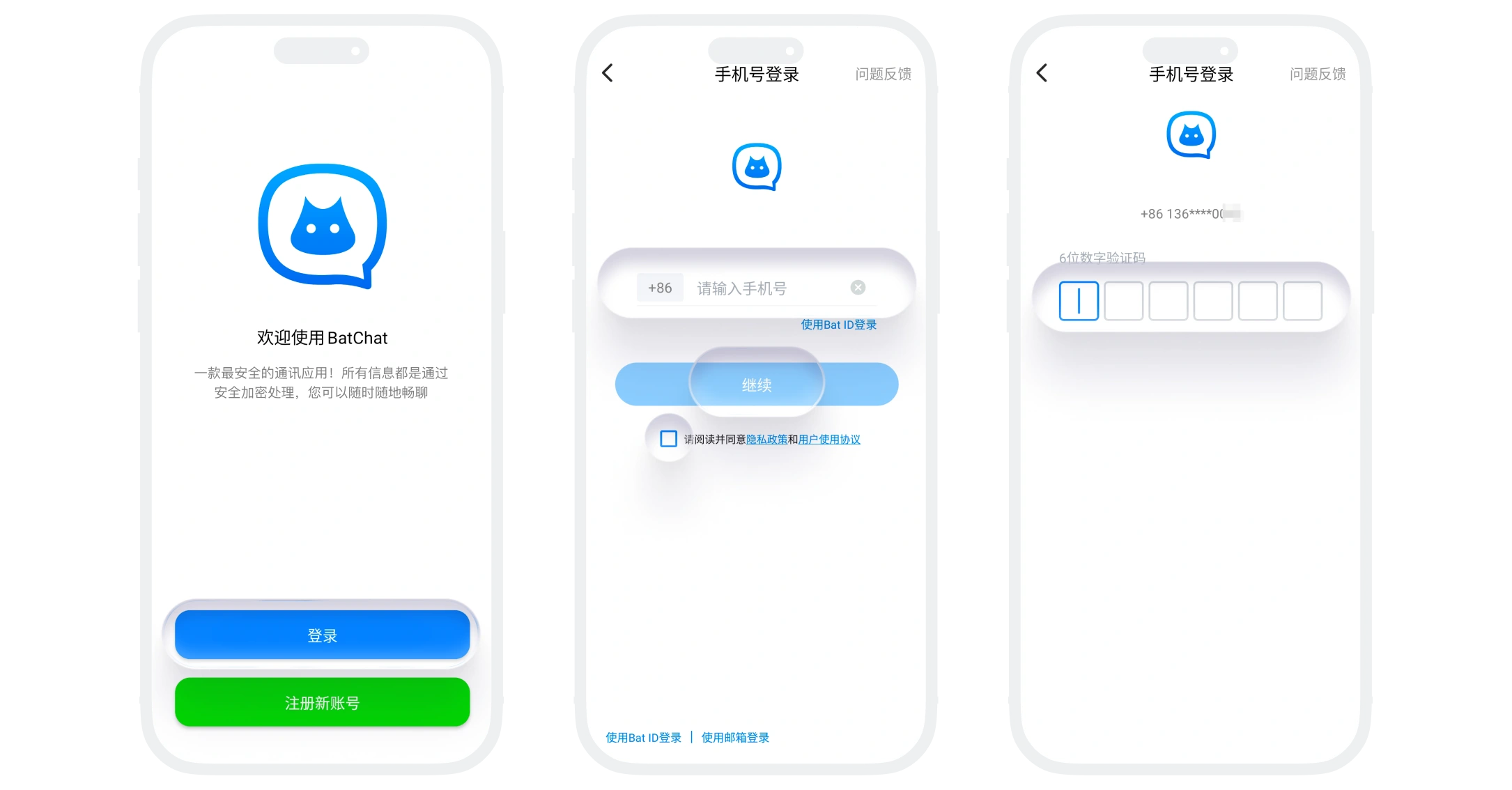
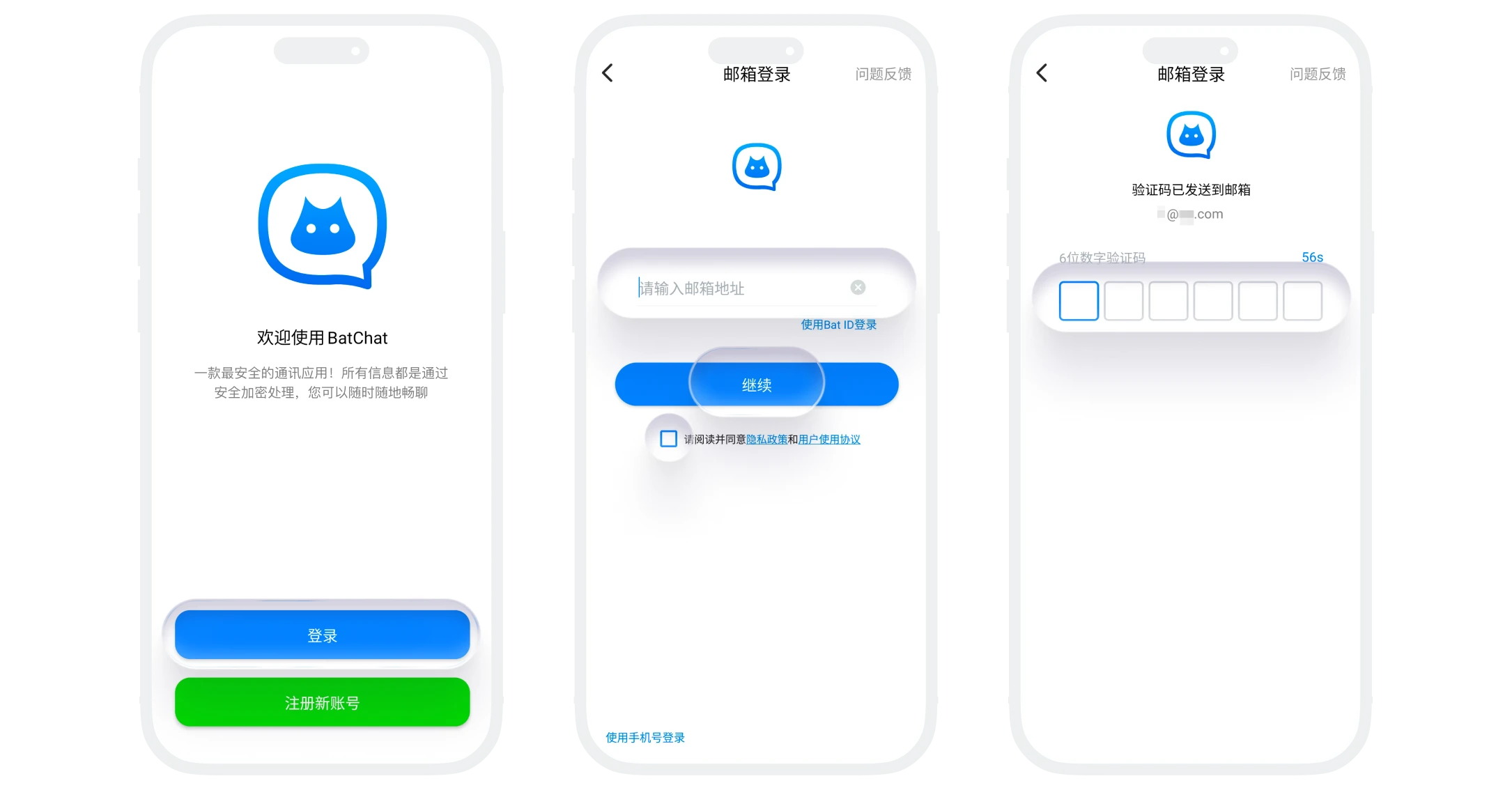

- Please ensure you enter the correct BatChat ID and login password. Multiple consecutive password errors may result in temporary login restrictions;
- If you don't receive the verification code for email login, please check your spam folder.
Log Out
Click "My" - "Settings" in the app, then click "Log Out" to log out of your account;
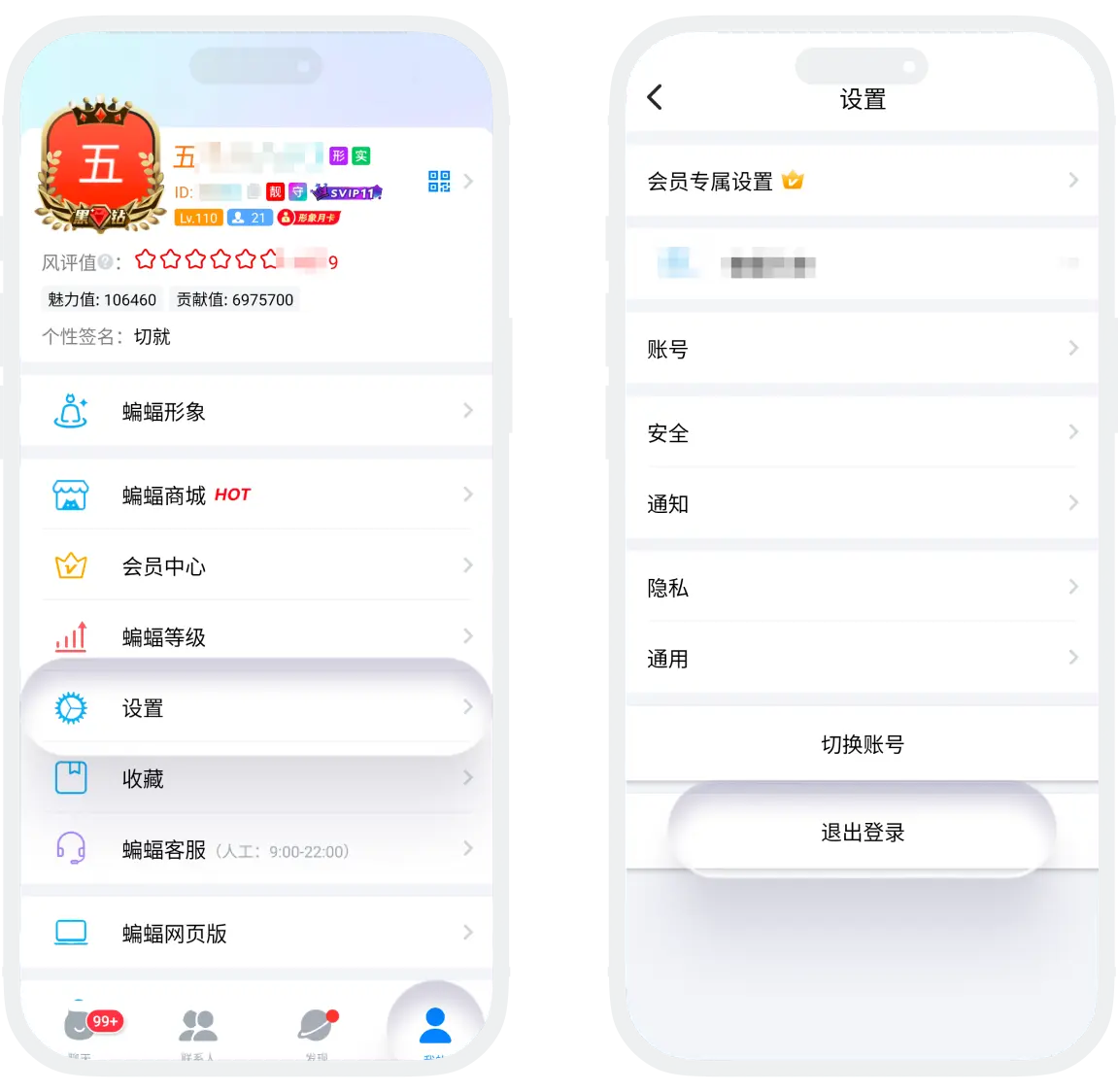

- After logging out, you will not receive any notifications for this account;
- If you want to log in to a different BatChat account on the same device, also go to "My" - "Settings", click "Switch Account", log in to another BatChat account, and you can quickly switch between different accounts here later.
PC Login
- Login: Download the latest PC version installation package from the BatChat official website and install it. On the BatChat APP message list page, click the "+" in the upper right corner, click "Scan", and scan the QR code on the PC side to log in.
- Log Out:
- Click the avatar in the upper left corner on the PC side, click the "Log Out" button at the bottom of the page and click to log out;
- If the mobile device you used for QR code login logs out, the PC side will also log out synchronously;
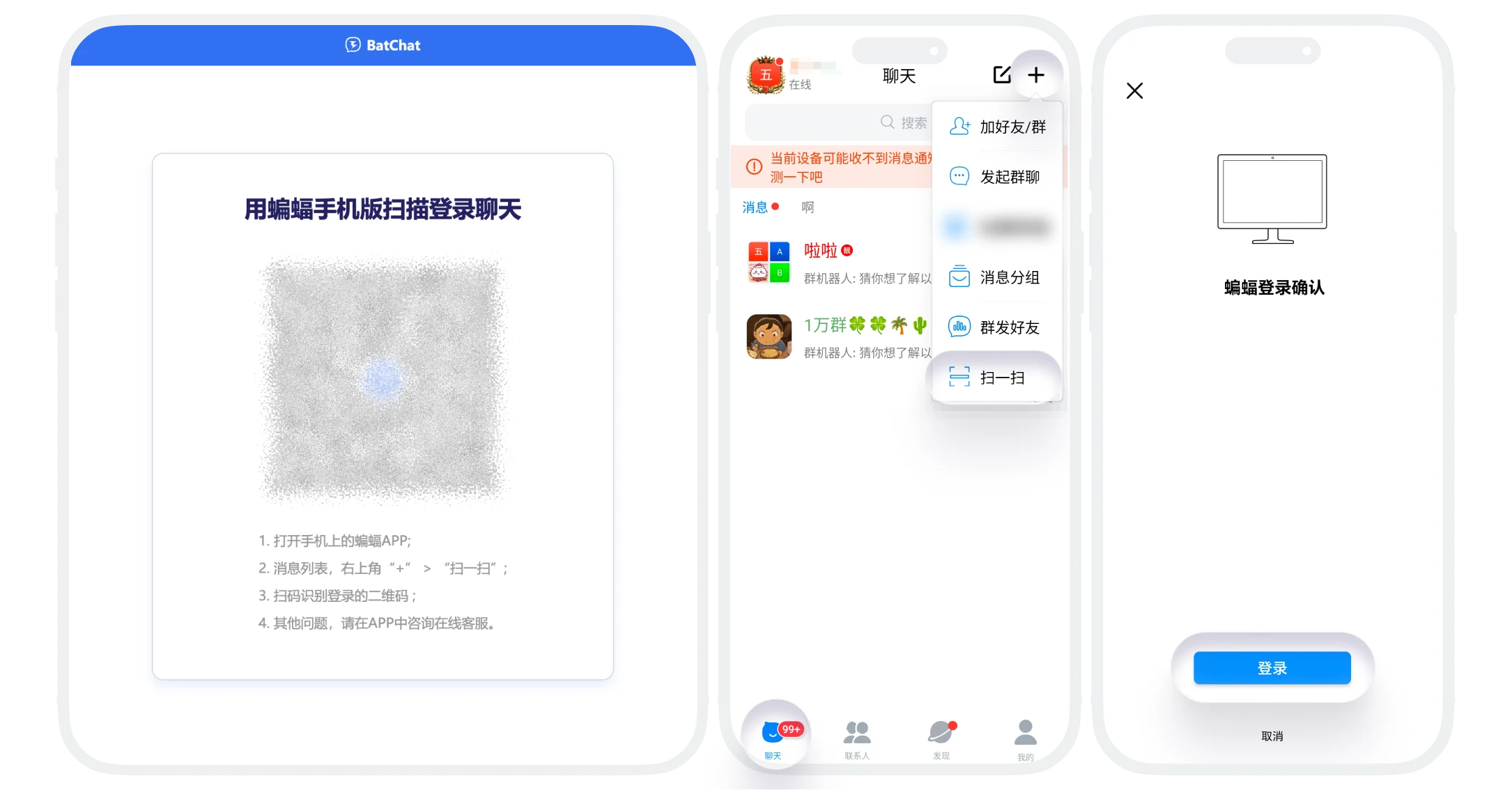

The PC side currently only supports QR code login using the BatChat APP.
FAQ
To ensure the security of BatChat accounts and prevent cheating tools like virtual devices from interfering with platform order, each account is limited to logging in on 2 devices.
After new account registration, if you haven't set a login password before logging out, to ensure you can log in normally later, the system will require you to set a login password first, in case your mobile number becomes unusable later and you cannot log in to your account.
Was this page helpful?