Set Administrator
The administrator setting function allows group owners to configure a management team for the group chat to assist in daily management and maintenance work.
Administrator Roles and Permissions
- Role definition
- Group owner: Group chat owner, has all operation permissions, quantity limited to 1 person;
- Administrator: Executes daily management tasks, no advanced setting permissions;
- Permission comparison table
| Management Function | Group Owner | Administrator |
|---|---|---|
| Edit Group Profile | √ | √ |
| Manage Group Members | √ | √ |
| Set Administrator | √ | - |
| Get Group Special ID | √ | - |
| Group Blacklist Management | √ | √ |
| Manage Group Mute List | √ | √ |
| Clean Inactive Group Members | √ | √ |
| Check-in Points Reward Setting | √ | - |
| Enable/Disable Hide Group Member Count | √ | - |
| Enable/Disable Group Member Protection Mode | √ | - |
| Group Mute Setting | √ | - |
| Set Join Method | √ | - |
| Set Group Search Method | √ | - |
| Manage Group Robot | √ | Group Owner Configuration |
| Transfer Group | √ | - |
| Disband Group | √ | - |
Administrator Setting Operation Process
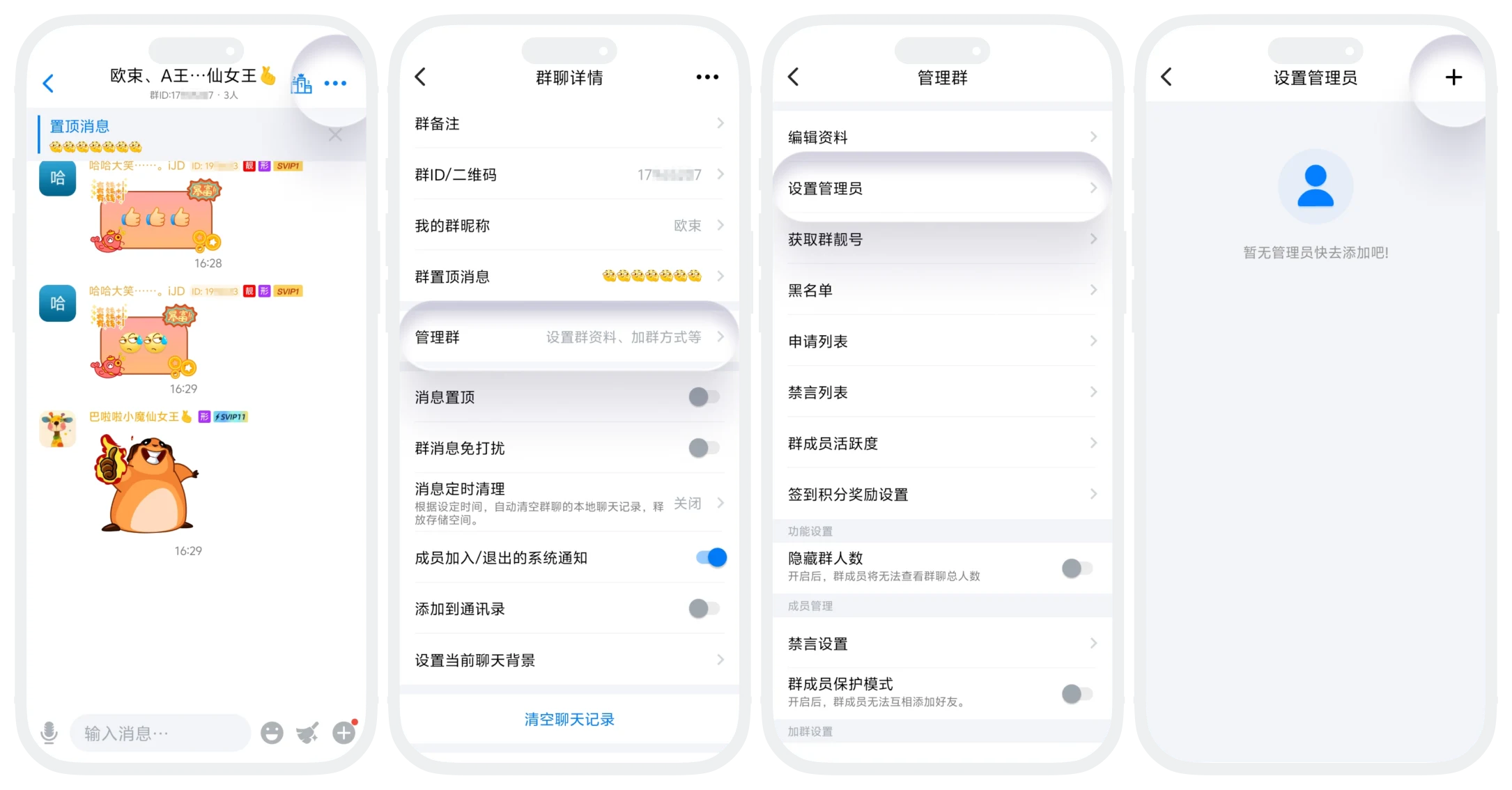
- Enter the group chat, click 'More' in the upper right corner to enter group chat details;
- Click 'Manage Group' - 'Set Administrator';
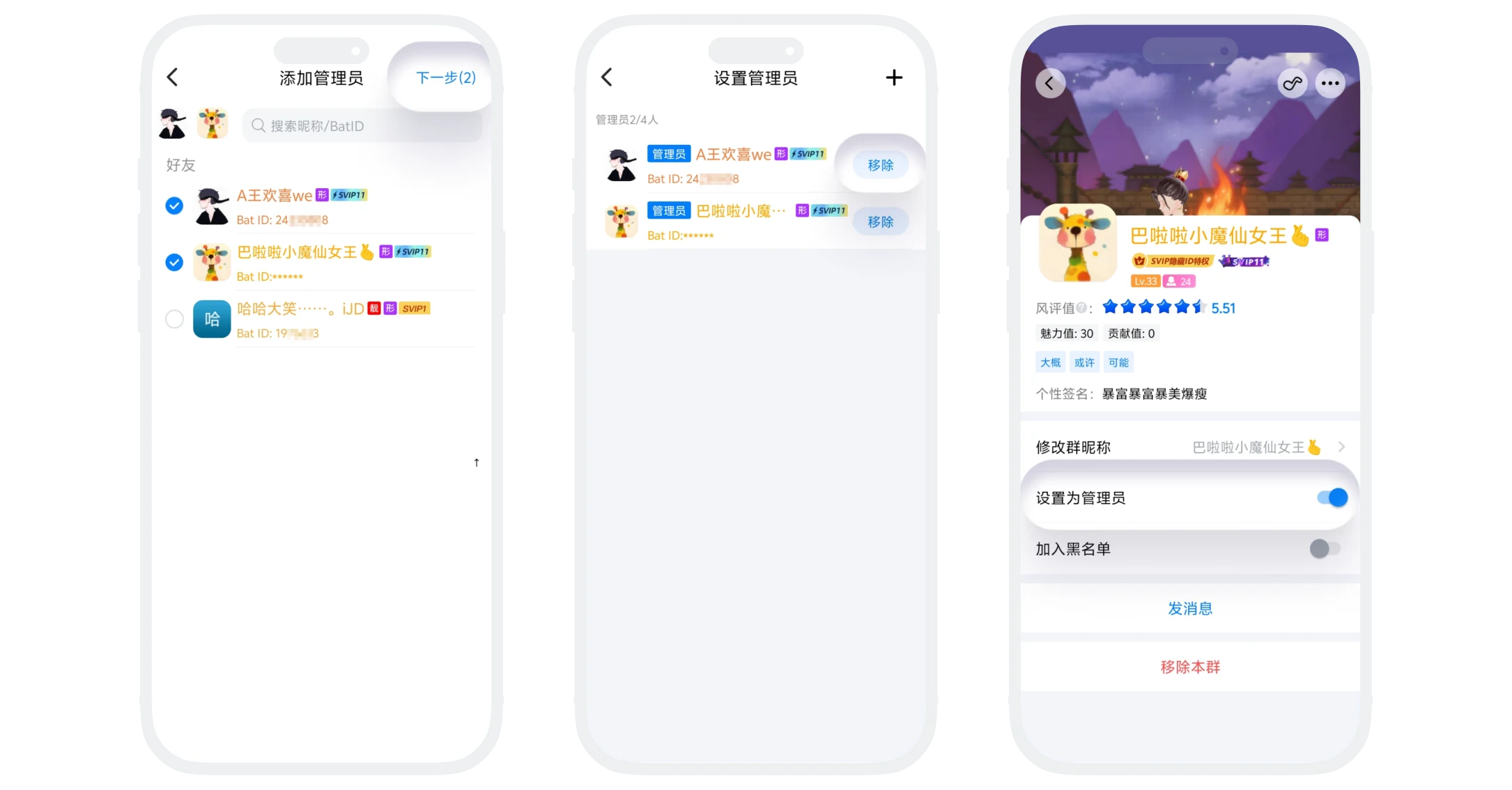
- Add Administrator: Click '+' in the upper right corner, check the members to be set as administrators (support multiple selection), click 'Next', setting successful. The system will send a notification to the member set as administrator;
- Remove Administrator: Click 'Remove' in the list, removal successful. The member will return to ordinary group member status and immediately lose administrator permissions;
- You can also enter the other party's profile page, turn on or off the 'Set as Administrator' switch for quick setting.
FAQ
No. Takes effect immediately after setting. But will receive notification:
- The system will send an invitation notification to the chat interface (visible to all members);
- The member set as administrator will also receive a group notification (visible only to themselves).
Was this page helpful?