Youth Mode
'Youth Mode' is a dedicated usage environment established to protect the healthy growth of minors. After enabling, the platform will automatically restrict some functions and services to create a safer and healthier online space. Parents or guardians can control the enabling and disabling of the mode through a password to ensure teenagers use the network reasonably.
Enable Youth Mode
First Time Enable Process
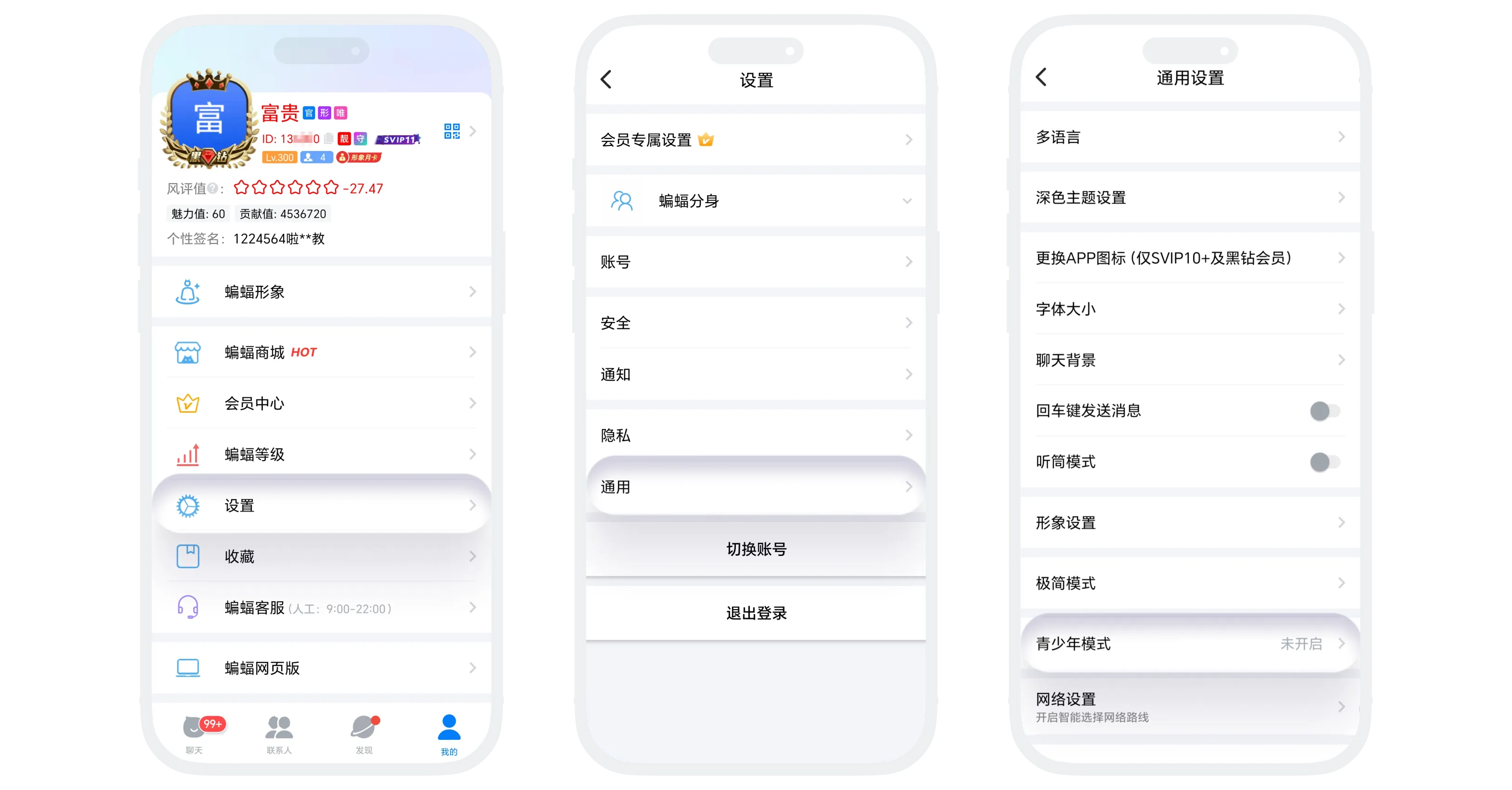
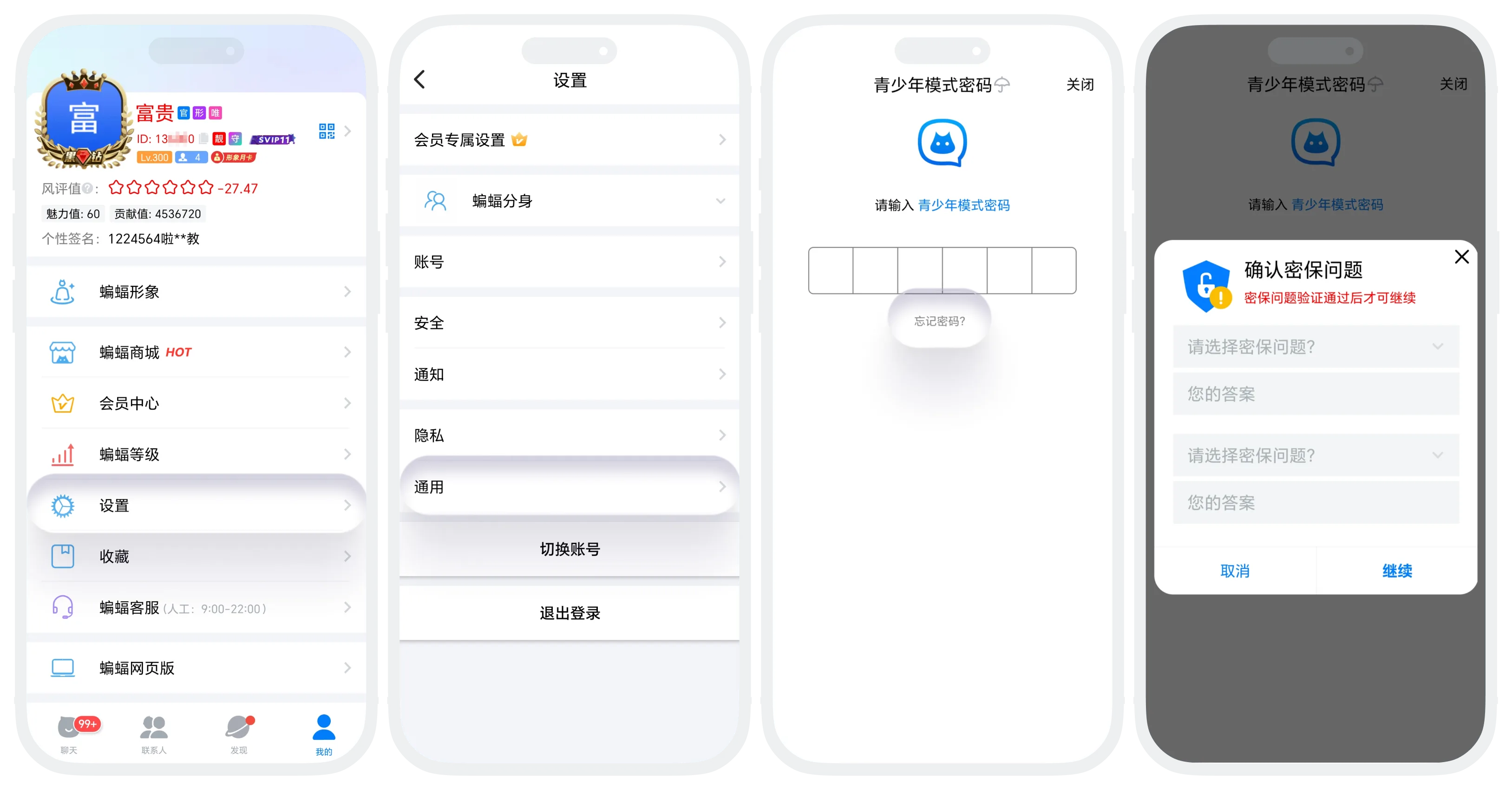
- Click 'Youth Mode' in 'My' - 'Settings' - 'General';
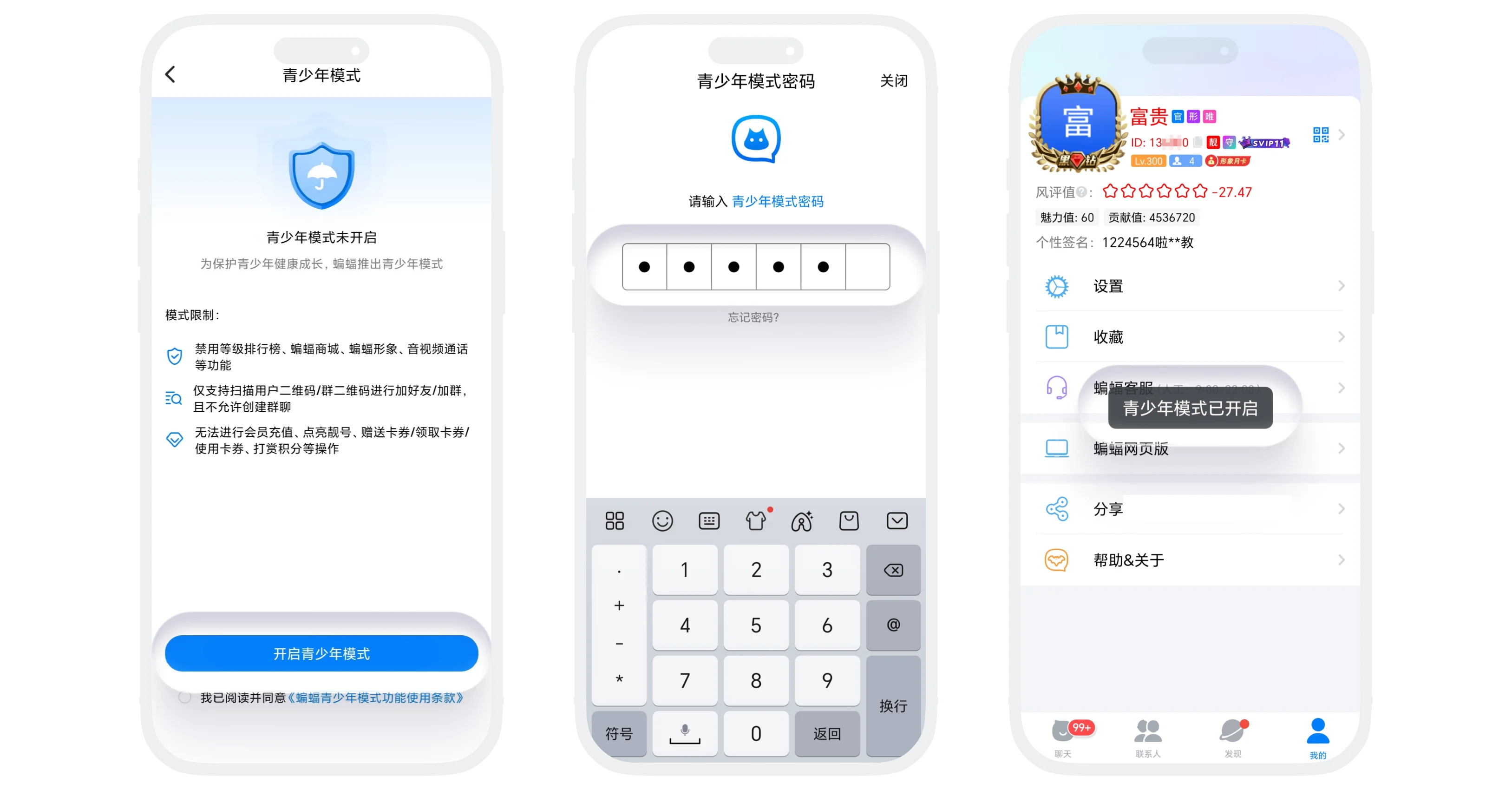
- Click the 'Enable Youth Mode' button to enter the password setting page, enter a 6-digit numeric password;
- Enter the same password again to confirm;
- After setting is complete, Youth Mode is automatically enabled;
Disable Process
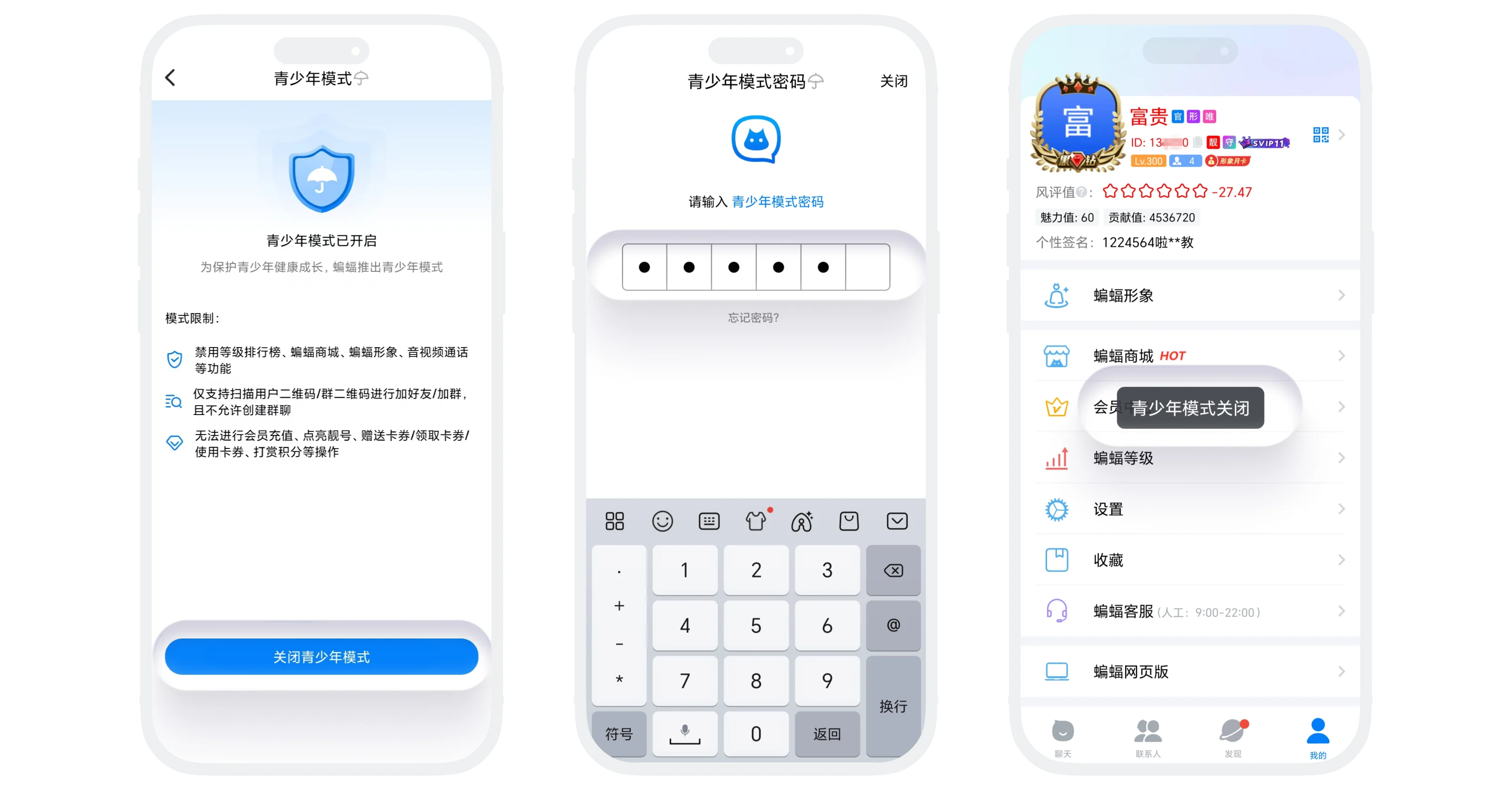
- Enter the 'Youth Mode' page, click the 'Disable Youth Mode' button;
- Enter the correct 6-digit password. After password verification passes, Youth Mode is disabled;
- After disabling, you can re-enter the page, click the 'Disable Youth Mode' button to re-enable Youth Mode.

Disabling/enabling Youth Mode requires entering the correct password and cannot be bypassed. Please remember and properly store it.
Effects After Enabling Youth Mode
- Disabled Functions: Level Leaderboard, BatChat Mall, BatChat Avatar, Audio/Video Calls;
- Cannot perform any payment operations, including but not limited to: membership recharge, special ID related, coupon related, tip points, avatar consumption;
- Add friend/add group restrictions:
- Only allowed to add friends by scanning QR code, others cannot add you as a friend through search, recommendation, etc.;
- Only allowed to add groups through group QR code, others cannot invite you to join any groups, nor can you create new groups;
- Cannot switch accounts: After enabling Youth Mode, the account switching function is disabled. If you need to switch accounts, you must first disable Youth Mode.
Forgot Password
- On the Youth Mode page, click 'Enable Youth Mode' or 'Disable Youth Mode';
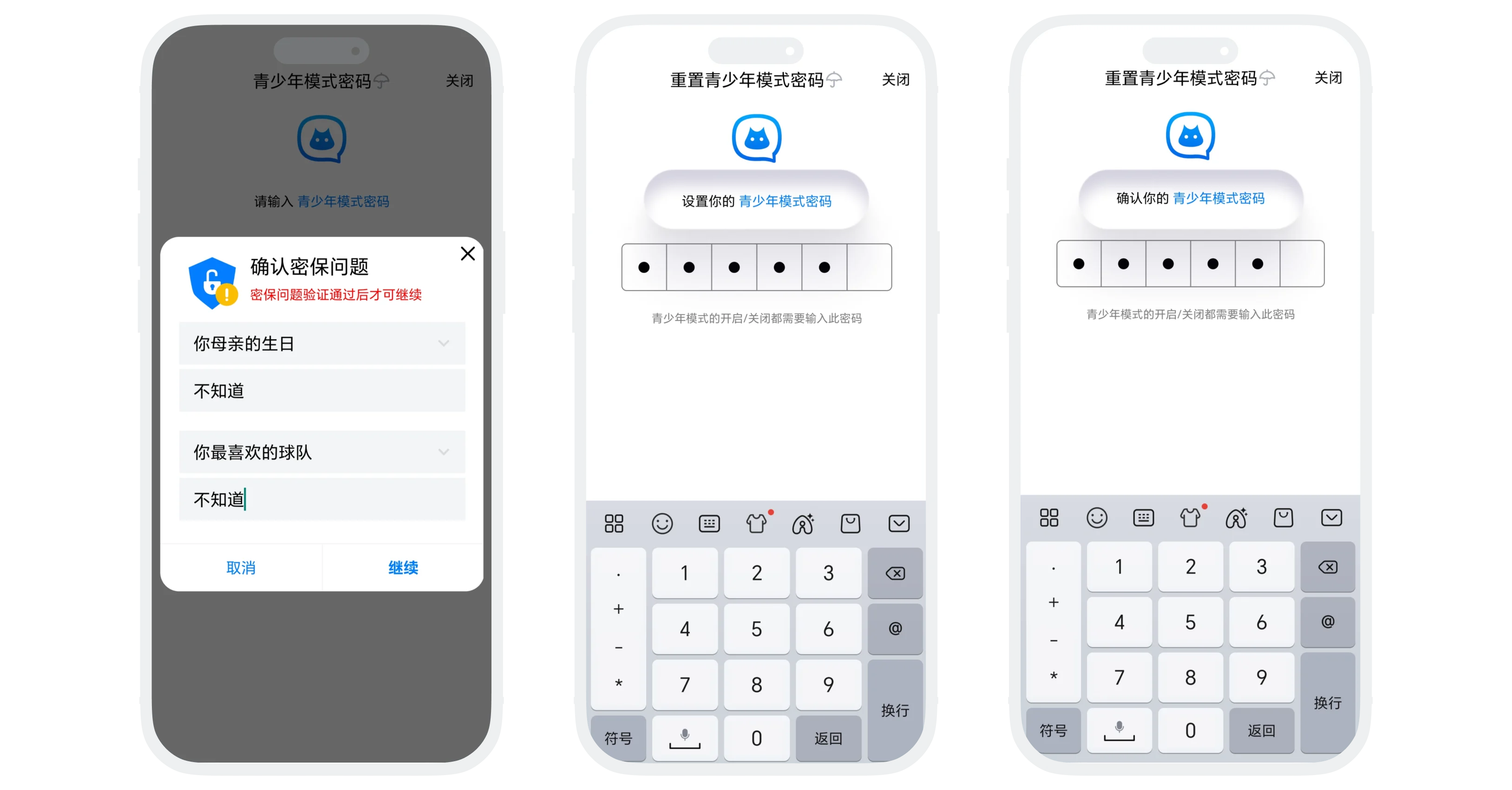
- On the password input page, click 'Forgot Password' to enter the security question verification page;
- Answer the security question you previously set. After the answer is correct, enter the password reset page;
- Enter a new 6-digit numeric password and confirm;
- After reset succeeds, you can use the new password to enable or disable Youth Mode.
FAQ
Yes. Chat features work normally, including text messages, stickers, images, and more. Only audio and video calls are restricted.
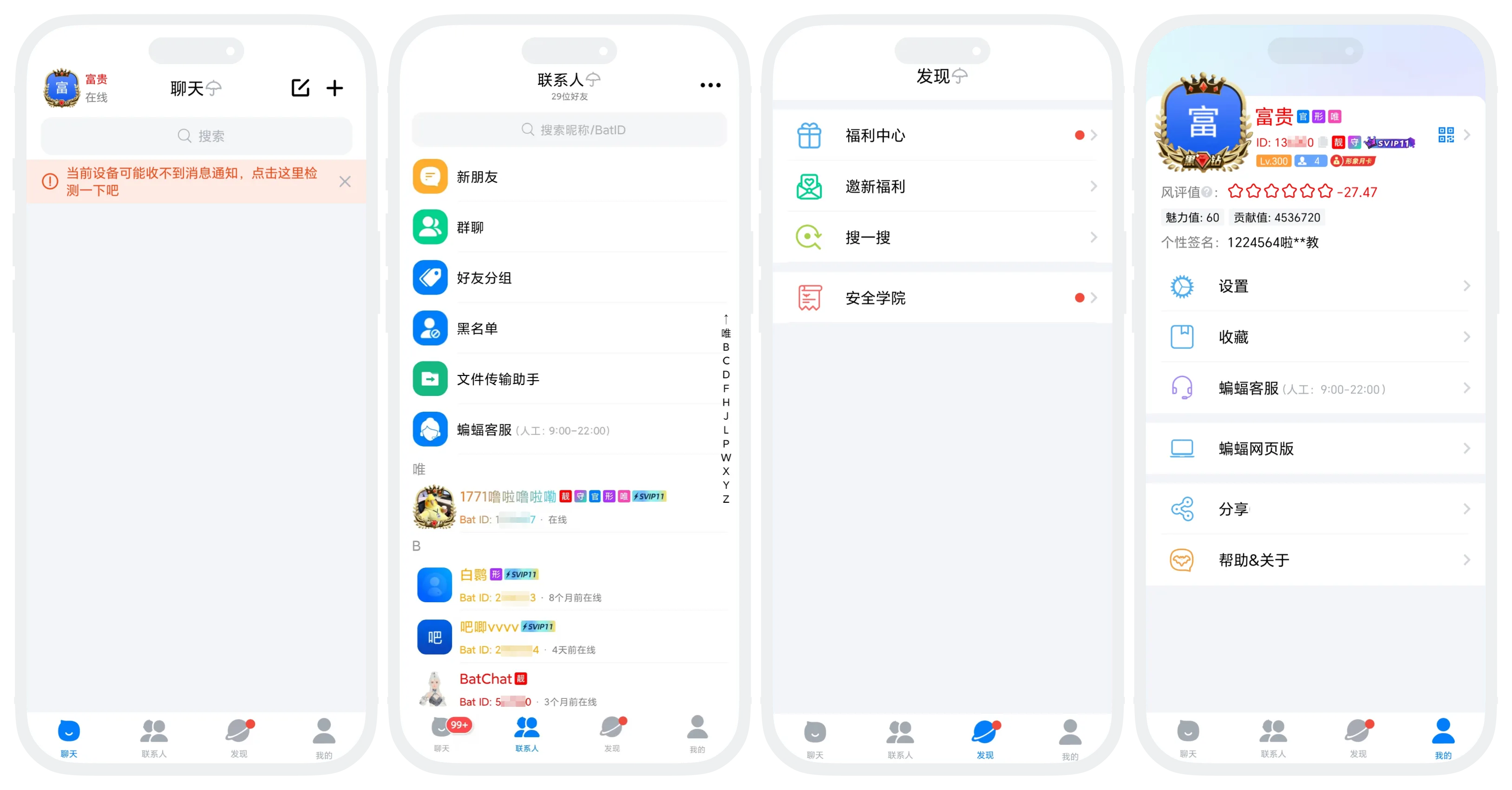
- After Youth Mode is enabled, a "Youth Mode" icon appears in the app status bar;
- Enter the "Youth Mode" page to view the current status.
Was this page helpful?